
How to Use Ask Gemini Without Interrupting Your Reading
Reading a long Gemini answer? Write down questions beside the text and keep going. Quick Follow-up keeps each question with its passage, so you can ask them together when you’re ready, without having to find the text again.
Install Gemini Power Kit first, then refresh your Gemini tab.
How do I reply to selected text in a Gemini answer?
Section titled “How do I reply to selected text in a Gemini answer?”Suppose Gemini suggests attaching a new habit to an existing routine. You want help remembering that specific habit:
- Select the sentence you want to discuss. The floating selection menu appears beside the text.
- Click Ask Gemini. A small comment field opens near the passage, and a numbered reference card appears above the main input.
- Write a focused question. For example: “How can I make this habit easier to remember?” Click the checkmark or press Enter to add the comment and keep drafting. Shift+Enter starts a new line.
- Send when ready. Use Gemini’s main Send button. The selected text and your comment are included together; you can also add an overall request in the main input.
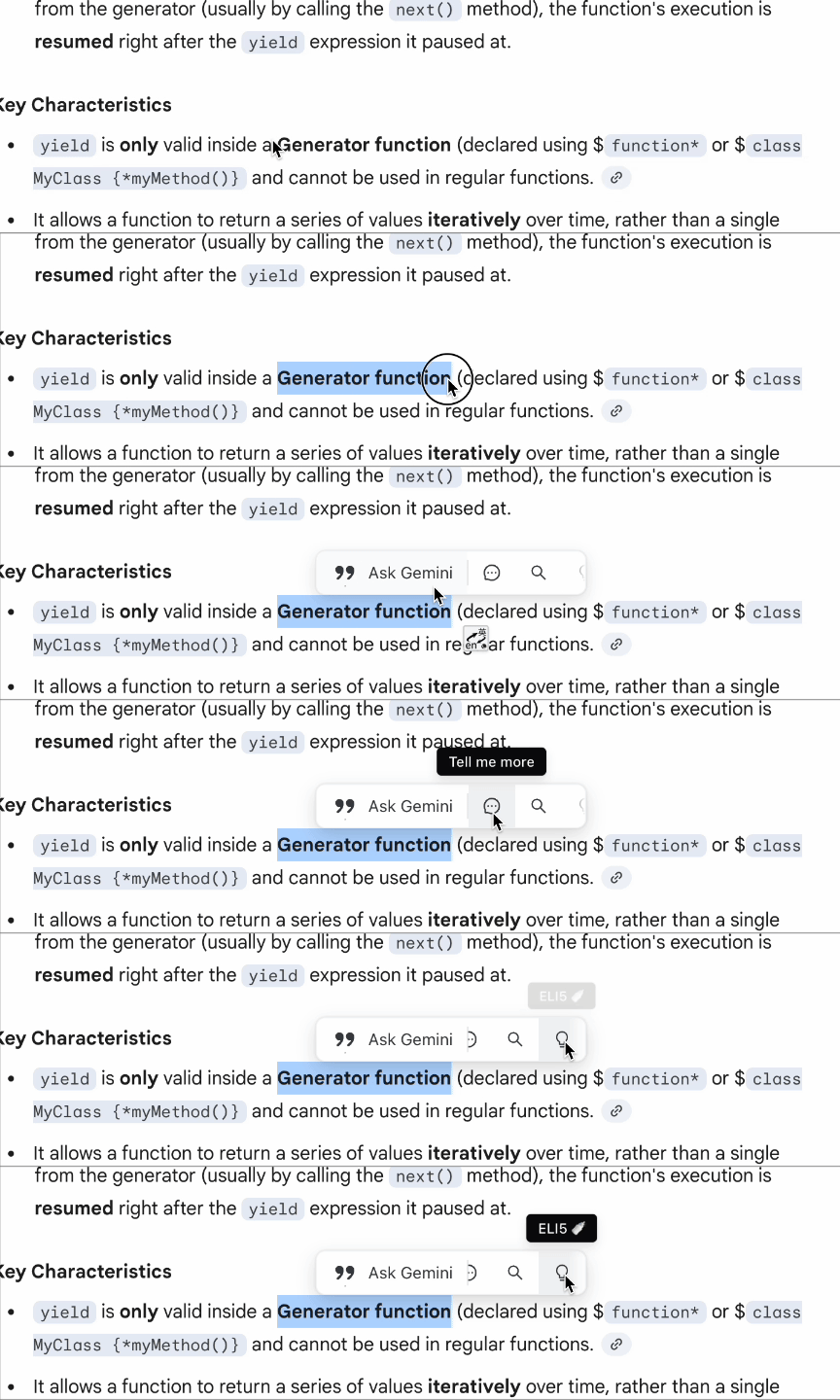
Start here: highlight the sentence, then click Ask Gemini.
If you have finished collecting questions, hold Command on macOS or Ctrl on Windows/Linux to change the comment checkmark to a send arrow. Click that arrow while holding the key, or press ⌘+Enter / Ctrl+Enter, to add the current comment and send the whole draft, including earlier references.
How do I ask about multiple parts of one Gemini reply?
Section titled “How do I ask about multiple parts of one Gemini reply?”Keep reading and note the next question beside its passage. Earlier questions stay in the draft, so you don’t have to keep them in your head or stop to send each one.
In the morning-routine example, you might collect:
| Selected point | Question to add beside it |
|---|---|
| Attach a new habit to an existing routine | “How can I make this habit easier to remember?” |
| Keep your phone out of the bedroom | “What can I do instead of checking my phone?” |
Optionally add “Give me one practical action for each point” in the main input, then send. You can collect up to 10 references per draft. Each comment and the overall request are optional.
The same approach works when studying a technical explanation, reviewing a project plan, or comparing code suggestions: select the point that needs clarification, then ask a question that names the missing detail.
How do I edit a question before sending it?
Section titled “How do I edit a question before sending it?”While reviewing the answer, look for the small numbered marker beside a selected passage. Its number matches the reference card.
- Hover over the marker to highlight the passage it belongs to.
- Click the marker to reopen that passage’s comment.
- Refine the question and choose Save. The matching card updates, and other questions stay in place.
Edit where you are reading: hover to identify the passage, click its marker, change the question, and save.
You can also open the same editor from a pending card’s comment control or edit icon. Choose Cancel, press Esc, or click outside to discard an unsaved edit. To remove a reference and its question, click the card’s ×; your main request stays in place.
What happens to quoted text after I send my reply?
Section titled “What happens to quoted text after I send my reply?”The sent message keeps the reference cards and their comments. While reading Gemini’s answer, you can look back at which question belonged to which passage.
These sent cards are read-only. Editing from a card or marker applies to comments you are still preparing to send.
What if Ask Gemini does not appear after I select text?
Section titled “What if Ask Gemini does not appear after I select text?”- Start with a short passage inside a Gemini response and finish selecting it.
- Open Gemini Power Kit → Prompt → Quick Follow-up in Gemini’s navigation and check Enable Quick Follow-up.
- If you installed or updated the extension while Gemini was open, refresh the Gemini tab and try again. Send or copy any reference draft you need before refreshing: reference drafts are not restored after a reload.
For settings, keyboard-send screenshots, and both editing entry points, see the Quick Follow-up feature guide.
What else should I know about Ask Gemini and quote reply?
Section titled “What else should I know about Ask Gemini and quote reply?”What is Ask Gemini, and what does quote reply mean?
Section titled “What is Ask Gemini, and what does quote reply mean?”Ask Gemini is the button in Gemini Power Kit’s text-selection menu. It opens a question field beside the selected text.
Quote reply means sending the original passage with your question. If you ask “Can you give an example?”, Gemini can see which idea you mean.
Does clicking Ask Gemini send a message immediately?
Section titled “Does clicking Ask Gemini send a message immediately?”It opens the comment field and creates a reference card. The checkmark or Enter adds a new comment without sending. Gemini’s main Send button, or the modifier-based send action described above, sends the draft.
Is long selected text shortened before it is sent?
Section titled “Is long selected text shortened before it is sent?”Card previews shorten long text to save space. The full selected text and comment are included when you send. Hover over or focus a card’s text preview to review the full content first.
What is the difference between Ask Gemini and a saved prompt skill?
Section titled “What is the difference between Ask Gemini and a saved prompt skill?”Ask Gemini lets you compose a question for the selected passage. A saved skill reuses an instruction, such as translation or explanation. With no reference cards, a skill sends its expanded prompt automatically; with cards already present, choose Add to draft or Send separately. See the saved-prompt instructions before using those actions with an existing draft.
Keep exploring
Section titled “Keep exploring”- Browse Tips & Tutorials for other tasks you want to complete in Gemini.
- Navigate a long Gemini chat with Chat Outline to return to earlier parts of the conversation.