Bulk Delete adds multi-select controls to the Google Gemini chat sidebar, so you can remove several unwanted conversations in one deliberate pass instead of opening each chat menu separately. It is designed for cleaning up drafts, one-off research, test prompts, or a long list of finished conversations while keeping the chats you still need easy to find.
The feature works on gemini.google.com in the Recents section. It does not remove anything until you select chats, press Delete, and confirm Gemini Power Kit’s warning.
In the Gemini sidebar, find Recents and select the small trash icon beside its heading. Gemini Power Kit opens Bulk Delete mode directly in the sidebar and adds a checkbox to each available chat.
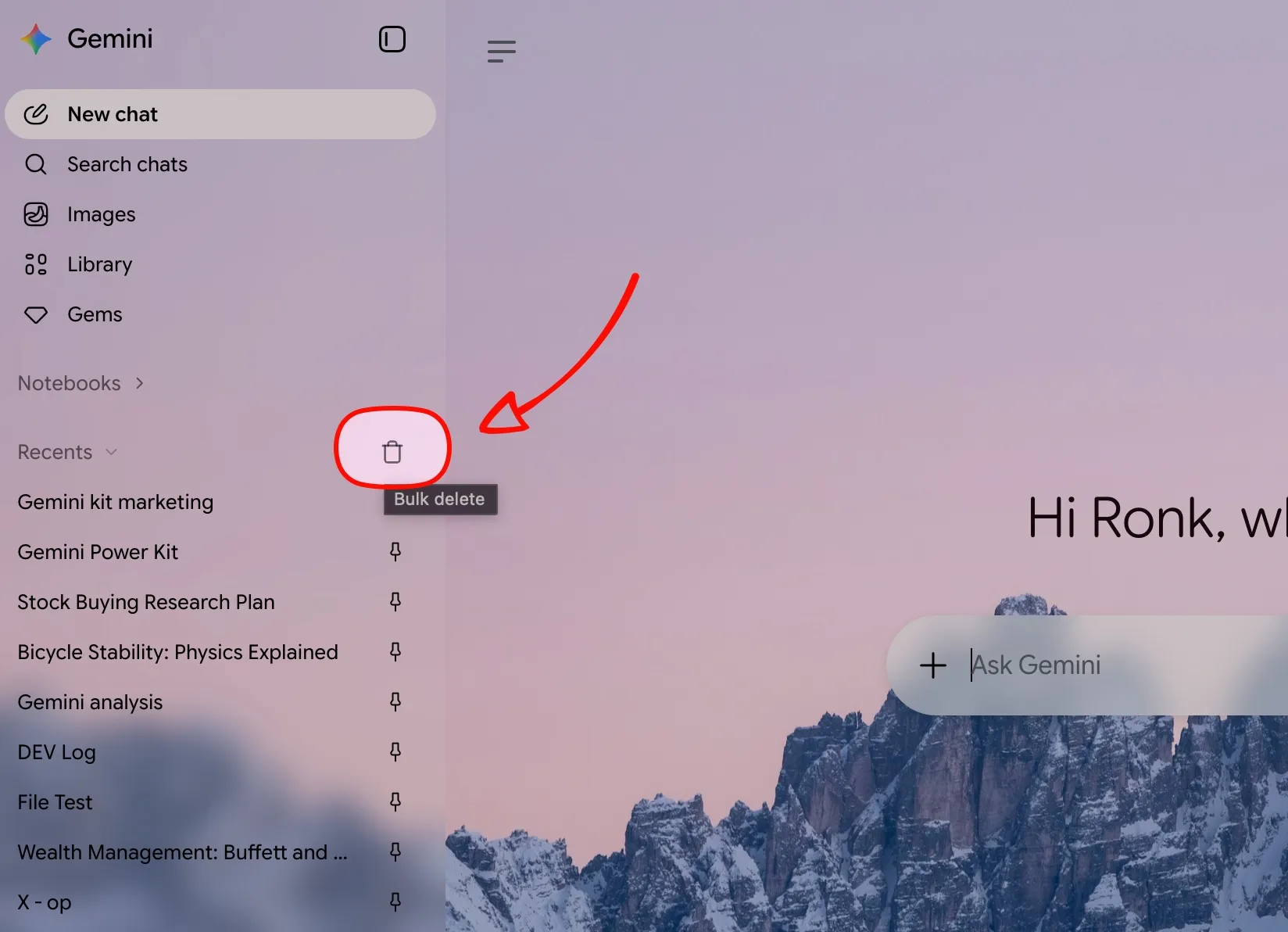
Bulk Delete entry — select the trash icon beside Recents.
Press the same icon again, or press Esc, to leave Bulk Delete mode. Leaving the mode only clears the current selection; it does not delete a chat.
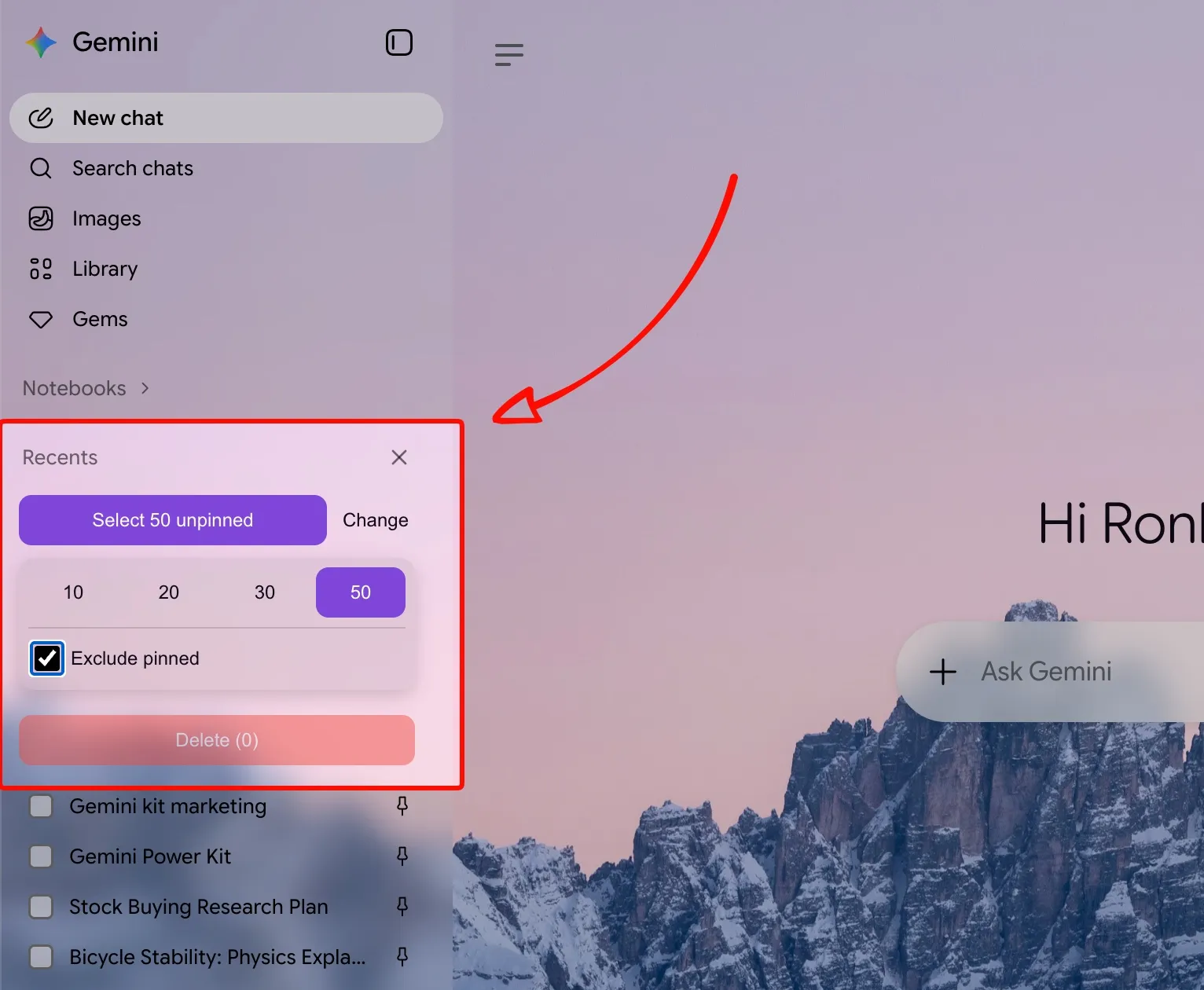
Bulk Delete panel — choose a recent batch, protect pinned chats, review checkboxes, then delete the selected conversations.
Select individual chats
Use the checkbox beside any loaded Gemini conversation to build a precise deletion list. The Delete button always shows the number currently selected.
Best for removing a few experiments, duplicates, or chats you have reviewed one by one.
Select recent chats
Select the newest conversations in the Recents list in one action. Choose a batch size of 10, 20, 30, or 50 before selecting.
Use it after a focused work session, prompt-testing run, or temporary research task has created many chats.
Exclude pinned
Turn on Exclude pinned before selecting recent chats to use Select unpinned. Pinned conversations are then left out of that batch selection.
Recommended when pinned chats are your ongoing projects, references, or reusable prompt workspaces.
Deselect pinned
If a pinned chat is already part of your selection, remove all selected pinned chats from the current deletion list with one click.
Use this as a quick safety check before deleting a mixed selection.
Deselect all
Clear every checkbox while staying in Bulk Delete mode. You can then make a smaller, more intentional selection without reopening the tool.
Use it when the current batch is broader than you intended.
Delete with confirmation and progress
The Delete button is disabled until chats are selected and shows the selected count. Confirm the final prompt to begin; larger batches show progress while the chats are removed.
Review the count and any pinned chats first. Deleted Gemini conversations cannot be restored through Bulk Delete.
- Open gemini.google.com.
- In the Gemini sidebar, expand Recents if needed and select the Bulk Delete trash icon.
- Select chats individually, or choose Select recent.
- For a recent batch, select 10, 20, 30, or 50 under Change. Turn on Exclude pinned first when you want to preserve pinned chats.
- Check the number on Delete. Use Deselect pinned or Deselect all if you need to adjust the batch.
- Select Delete and confirm the irreversible action.
- Wait for the progress indicator to finish. The tool returns to Bulk Delete mode with no chats selected, ready for another review.
- After prompt experiments: remove throwaway conversations created while comparing prompts, models, or outputs.
- After research sprints: clear finished searches and short investigations without disturbing your pinned reference chats.
- Before sharing your screen: reduce sidebar clutter and remove private, irrelevant, or duplicate chat titles from view.
- For regular history maintenance: select the newest 10–50 chats, exclude pinned work, and keep Recents focused on active conversations.
Bulk Delete is enabled by default. To change that setting:
- Open gemini.google.com.
- In Gemini’s left navigation, select Gemini Power Kit above Settings & help to open the extension settings panel.
- Under Tools, open Enhancements.
- Turn Bulk Delete on to show the Recents trash-icon entry, or off to remove the entry and its sidebar controls.
Turning the setting off does not delete Gemini chats. It only disables Gemini Power Kit’s Bulk Delete interface. Turn it back on in the same place whenever you need it again.
- Bulk Delete only acts on chats you explicitly select in the current session.
- A confirmation is required before deletion starts.
- Use Exclude pinned before batch selection when you want to protect pinned conversations automatically.
- If Gemini cannot load all requested recent chats, select again or reload the Gemini page before deleting.
- Gemini’s chat interface can change over time; keep Gemini Power Kit updated for the latest compatibility fixes.