
What's New
Keep up with the latest releases, improvements, and fixes.
v0.12.0 A More Playful, Reliable Gemini
Section titled “v0.12.0 A More Playful, Reliable Gemini”August 16, 2026
Make your Gemini workspace more expressive, keep everyday actions within reach, and rely on smoother navigation.
Theme Bloom
Section titled “Theme Bloom”Drop one supported image from your computer anywhere outside Gemini’s prompt box to make it your wallpaper and apply the closest matching color preset. The new look blooms outward from the drop point. Image drops inside the prompt box still use Gemini’s native upload flow.
Theme Bloom is on by default and supports one PNG, JPG, WebP, or AVIF image up to 10 MB and 40 MP. See the Theme guide for the full workflow and controls.
Delete Current Chat Shortcut
Section titled “Delete Current Chat Shortcut”Keyboard Shortcuts now includes Delete Current Chat. Assign your own combination in Tools → Shortcut when you need it; it starts unassigned to prevent accidental deletion. The shortcut opens Gemini’s native delete flow, where you still review and confirm the action.
Improvements and Fixes
Section titled “Improvements and Fixes”- Restored the Bulk Delete entry in Gemini’s Recents sidebar.
- Made New Chat navigation more resilient.
- Polished Theme controls and top-bar tooltips for a clearer, more consistent interface.
v0.11.0 A More Personal Gemini Workspace
Section titled “v0.11.0 A More Personal Gemini Workspace”July 26, 2026
Make your Gemini workspace easier to recognize, easier to read, and more comfortable to arrange around the way you work.
Chat Layout
Section titled “Chat Layout”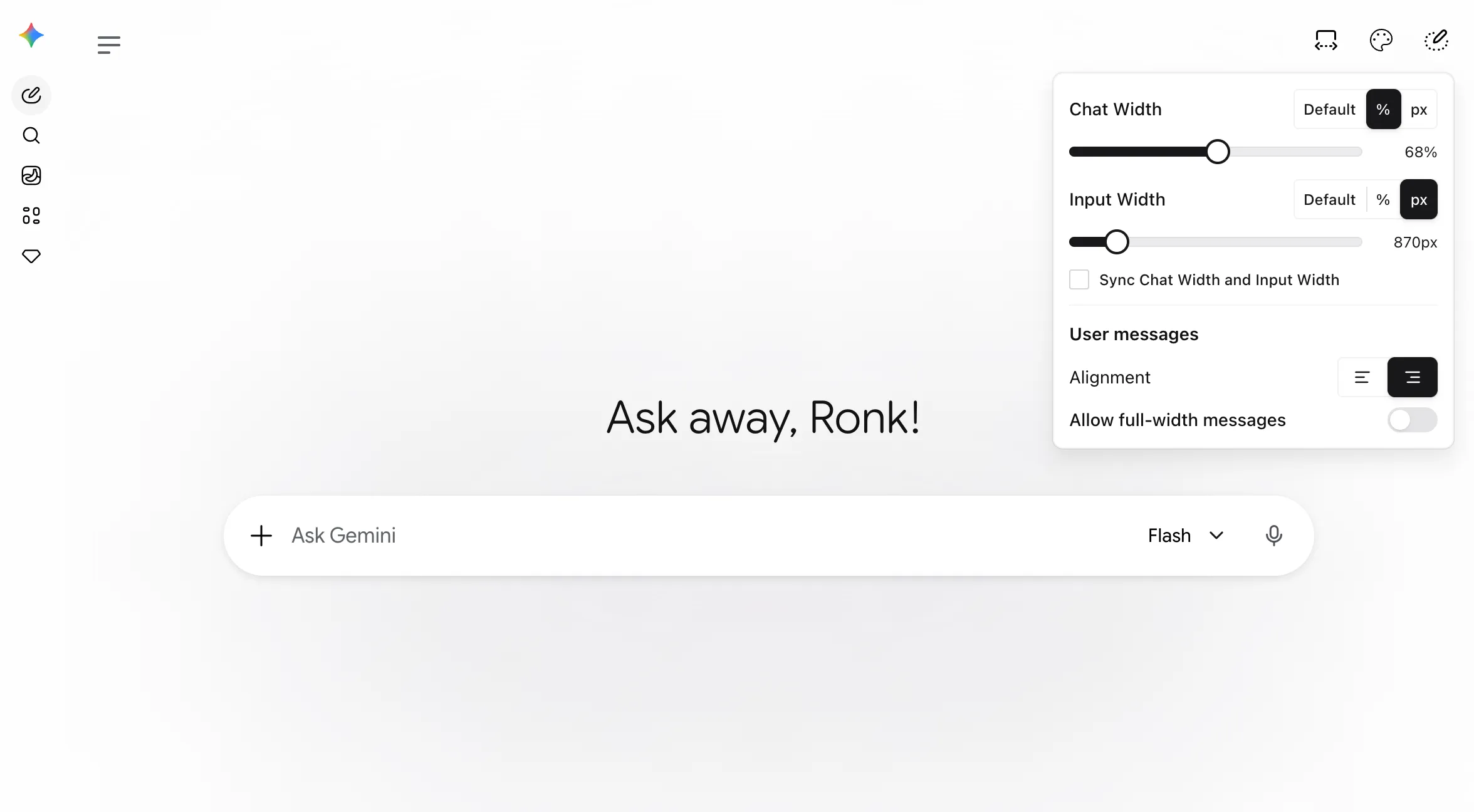
Set separate maximum widths for the conversation and prompt box, or keep them matched with Sync Chat Width and Input Width. You can also choose how your messages align and let long prompts use the full available width. Read the Chat layout guide for the controls and their limits.
Gem Avatar
Section titled “Gem Avatar”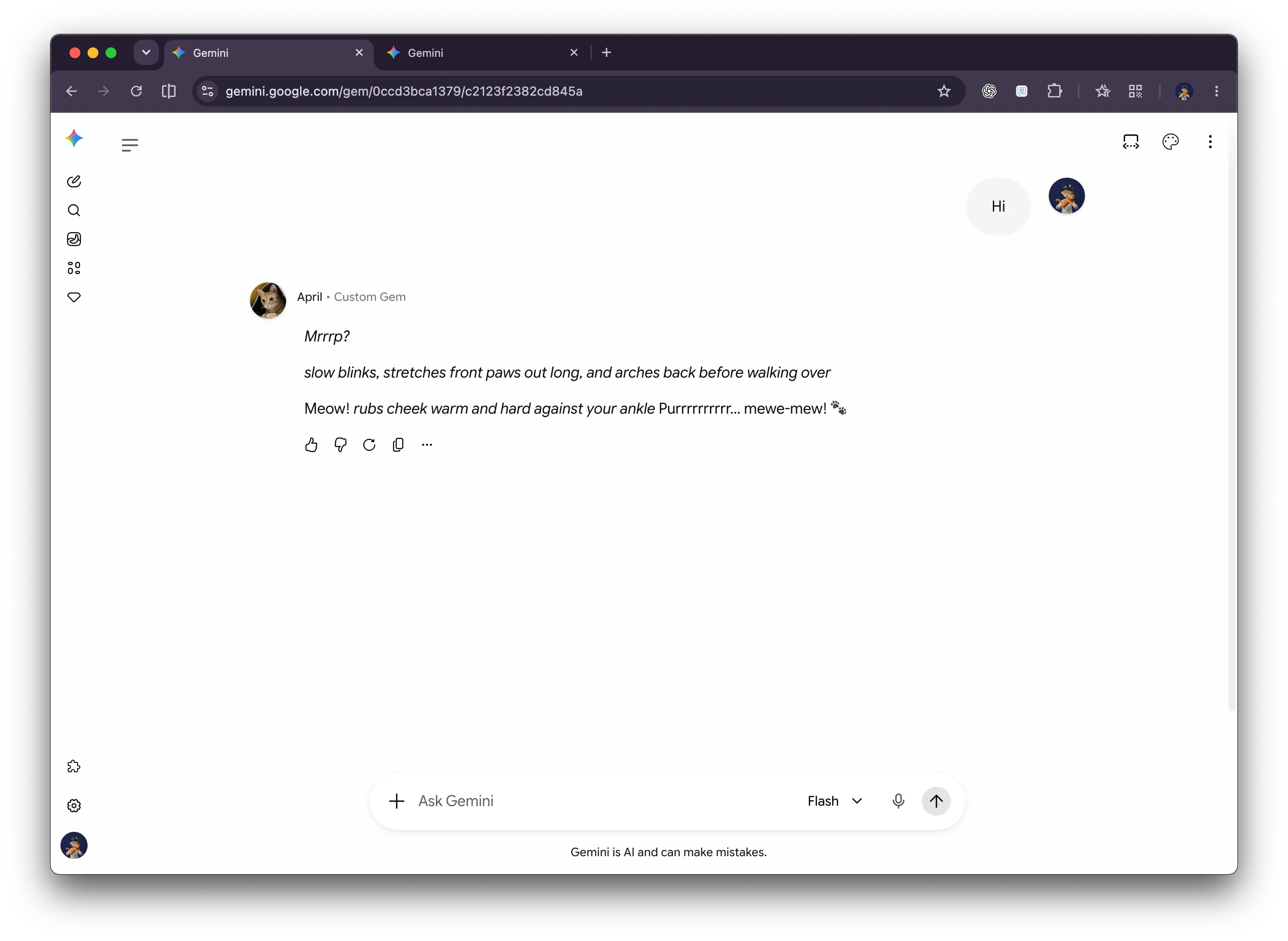
Give each Gem a custom local avatar so its role is easier to spot in your Gem list and conversations. Read the Gem Avatar guide to turn it on, upload an image, and understand where avatars are stored.
Theme Controls
Section titled “Theme Controls”Theme now gives you more control over reading comfort and quick access. Adjust Message text color for the active appearance mode, tune Input transparency when using a wallpaper, and show or hide the Theme shortcut in Gemini’s top bar. The Theme guide covers the full customization workflow.
Improvements
Section titled “Improvements”- Keyboard shortcuts can now run while the Gemini prompt editor is focused.
- The Gemini Power Kit side-nav entry is more stable, and the Bulk Delete entry is clearer to find.
v0.10.0 Bulk Delete and Keyboard Shortcuts
Section titled “v0.10.0 Bulk Delete and Keyboard Shortcuts”July 19, 2026
Clean up Gemini history faster and keep frequent actions within reach.
Bulk Delete
Section titled “Bulk Delete”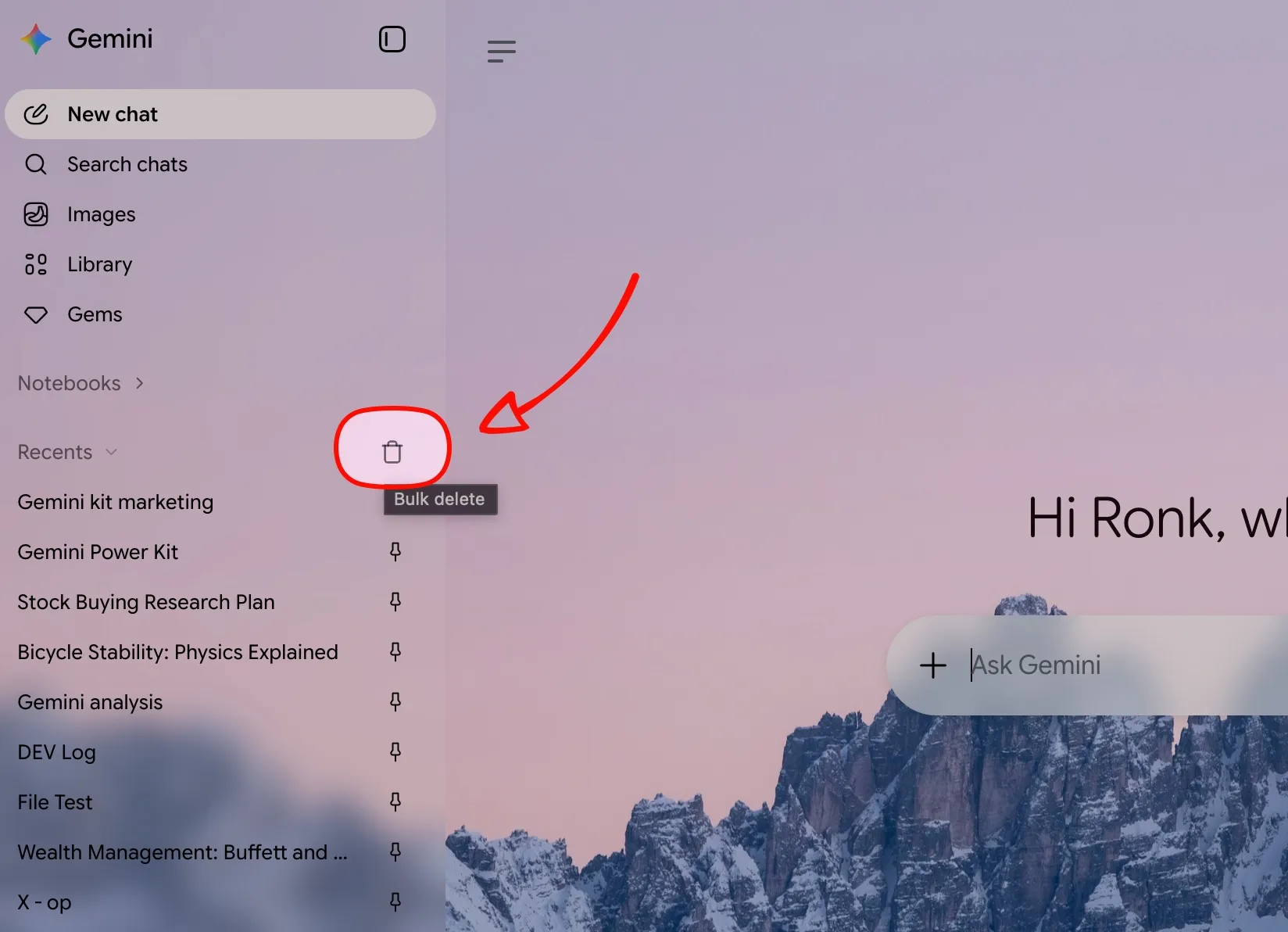
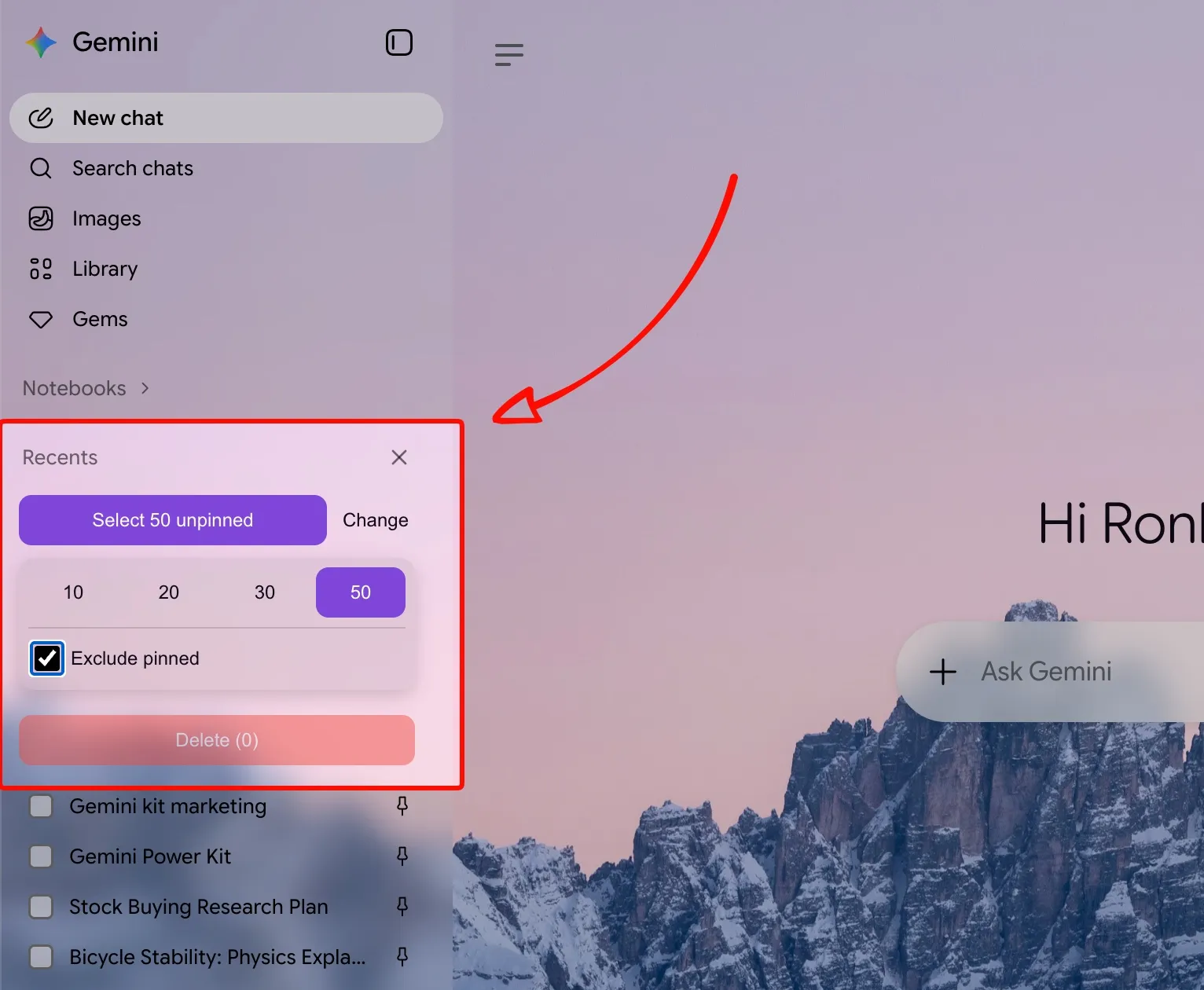
Bulk Delete adds a multi-select workflow to Gemini’s Recents sidebar. Select the trash icon, choose chats individually or as a recent batch, then review the selected count before you delete.
Use Exclude pinned to leave pinned conversations out of a recent batch, or use Deselect pinned and Deselect all to review the selection again. Deletion requires confirmation and shows progress for larger batches; deleted chats cannot be restored through Bulk Delete.
Keyboard Shortcuts
Section titled “Keyboard Shortcuts”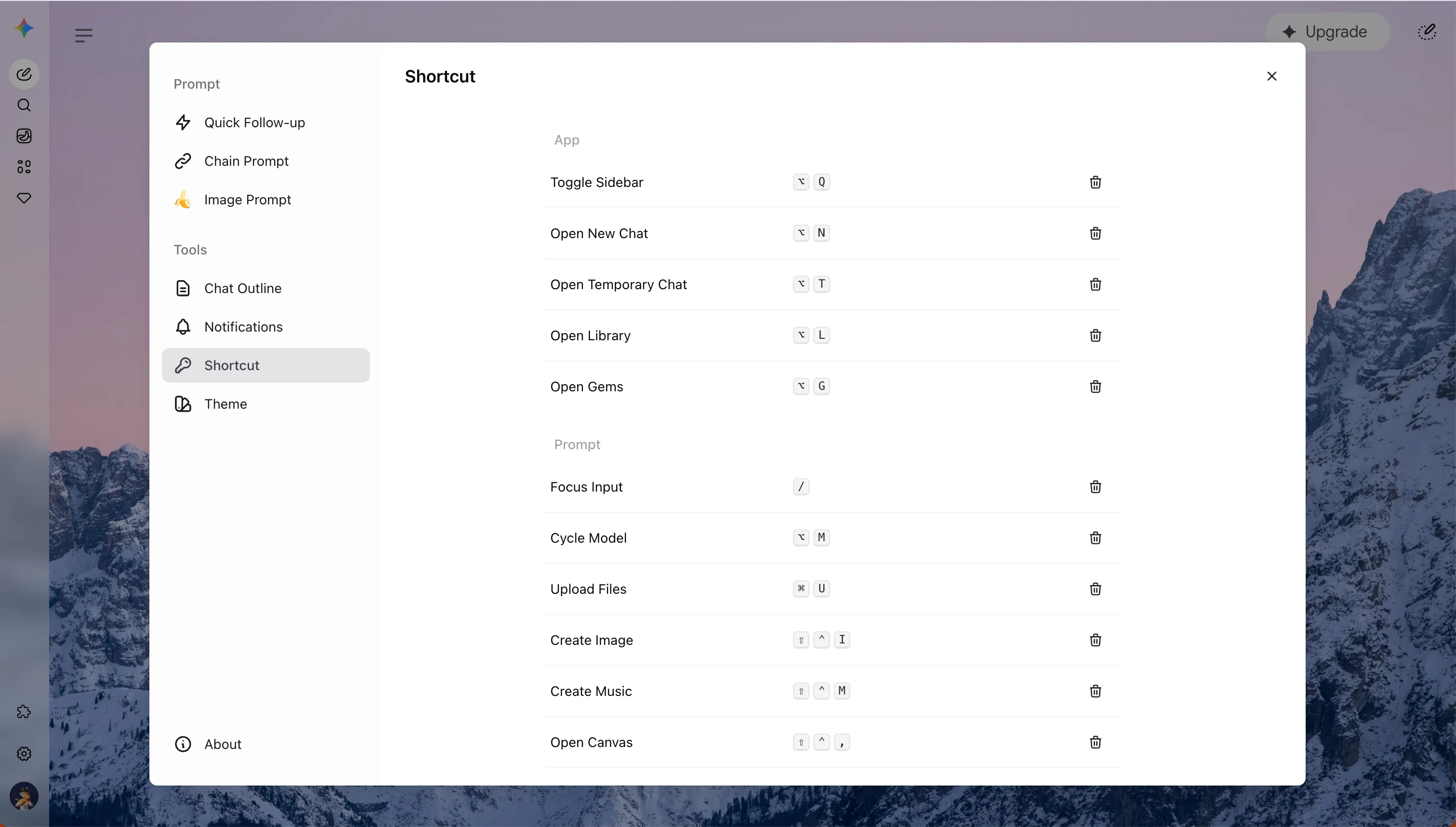
Keyboard Shortcuts lets you set combinations for frequent Gemini actions, including new and temporary chats, navigation, prompt tools, model cycling, file uploads, and Bulk Delete. Open Gemini Power Kit in the sidebar, then choose Tools → Shortcut to edit a binding. Changes apply immediately on Gemini without a refresh.
v0.9.0 Background Position
Section titled “v0.9.0 Background Position”July 7, 2026
Wallpaper now gives you control over where the background image is anchored.
When a wallpaper subject sits near an edge, center-cropped cover rendering can cut off the part you care about. Background Position adds nine simple anchor choices, including top, center, bottom, and corner positions, so you can keep the important part of the image visible.
The setting is saved with your Theme preferences, applies immediately to the Gemini wallpaper layer, and is reflected in the Theme live preview.
v0.8.0 Reply Completion Notifications
Section titled “v0.8.0 Reply Completion Notifications”June 27, 2026
Gemini Power Kit can now let you know when Gemini finishes replying.
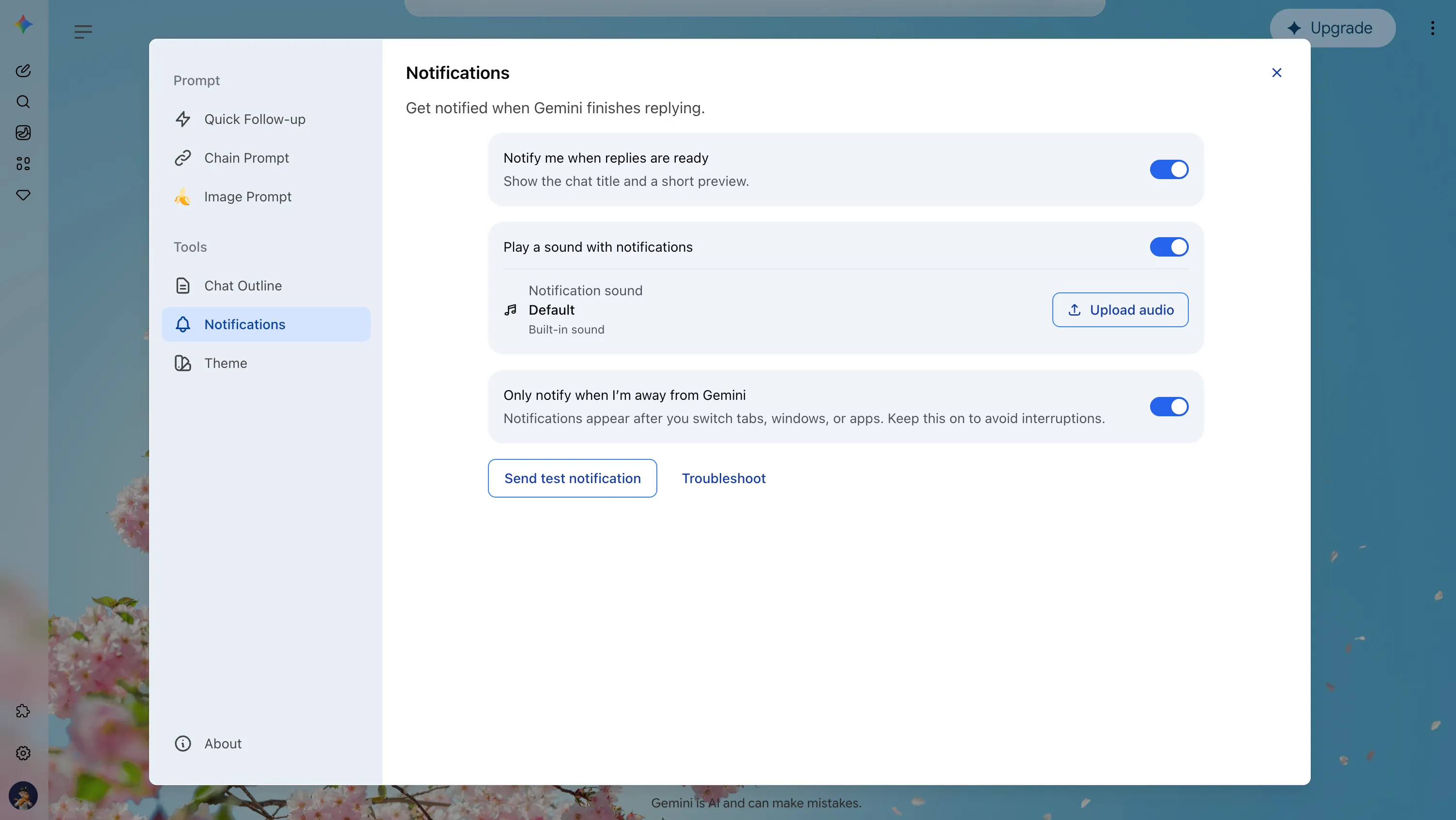
When a Gemini reply finishes in the background, Gemini Power Kit can send a system notification with the conversation title and a short preview. Click the notification to return to the right conversation, and the alert is cleared from the notification center.
Notifications are opt-in. The extension asks for the required browser permissions only when you enable the feature, and the settings panel includes a test notification plus troubleshooting guidance for browser and system notification settings.
Notification Sound and Custom Audio
Section titled “Notification Sound and Custom Audio”You can enable a completion sound for notifications, then upload your own audio if you want a more recognizable cue. Custom audio is stored locally by the extension and falls back to the bundled sound when no custom file is set.
More Completion Types
Section titled “More Completion Types”The notification flow now handles more than basic text replies. It can recognize image results, generated videos, and Deep Research completion paths when Gemini exposes the final result state.
Library Fix
Section titled “Library Fix”- Fixed Open in New Tab in the Library gallery, so media items can open in a separate tab without losing your place in the gallery.
v0.7.0 Glass Effect Controls
Section titled “v0.7.0 Glass Effect Controls”May 30, 2026
Make message glass feel just right.
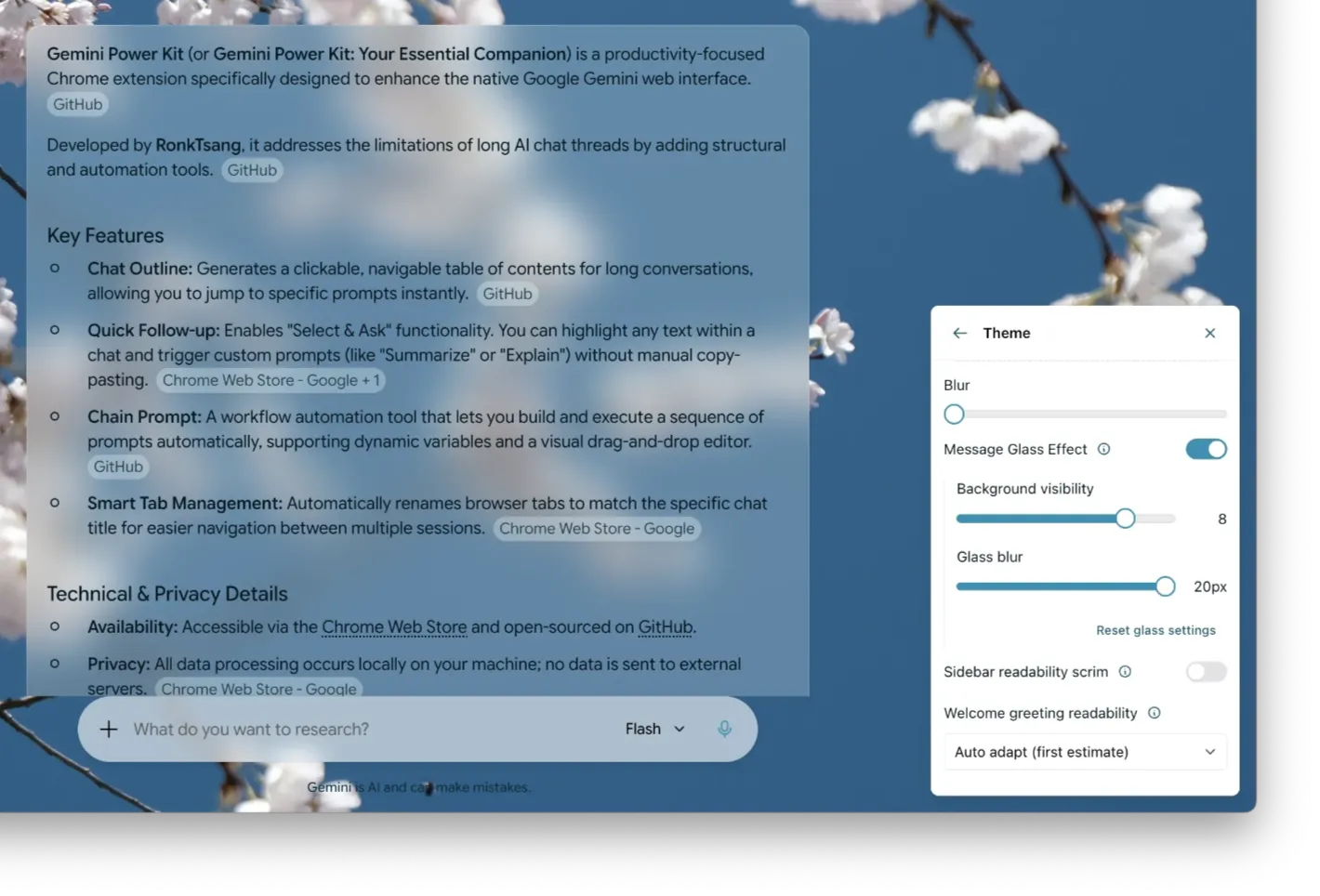
Dial in background visibility and glass blur until every chat feels crisp, airy, and tuned to your wallpaper.
v0.6.0 Themes and Wallpaper
Section titled “v0.6.0 Themes and Wallpaper”March 1, 2026
This release turns Gemini into a workspace you can personalize without sacrificing readability.
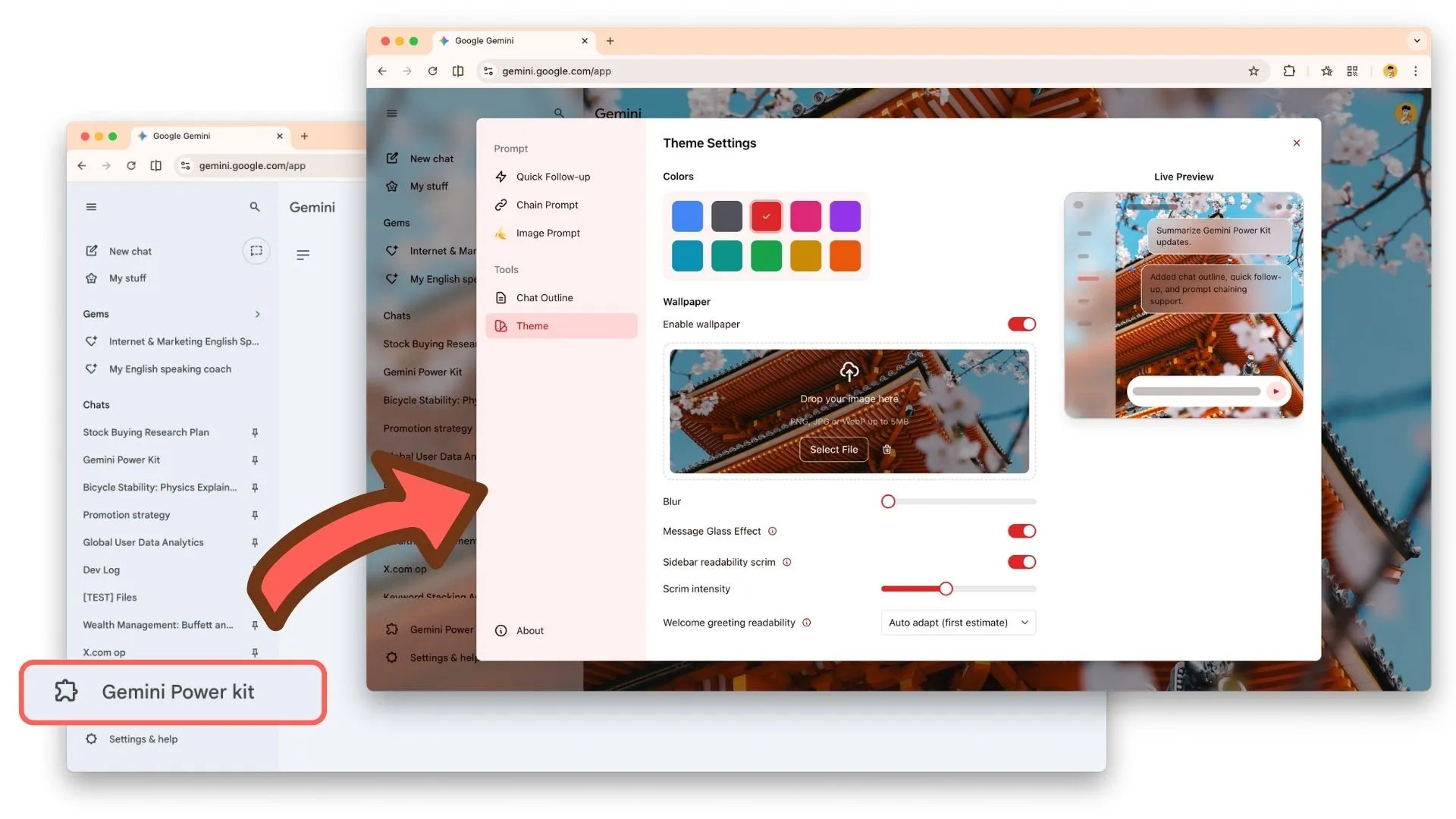
Pick a color preset, and optionally add a wallpaper with adjustable blur and a glassy message look.
Color Presets
Section titled “Color Presets”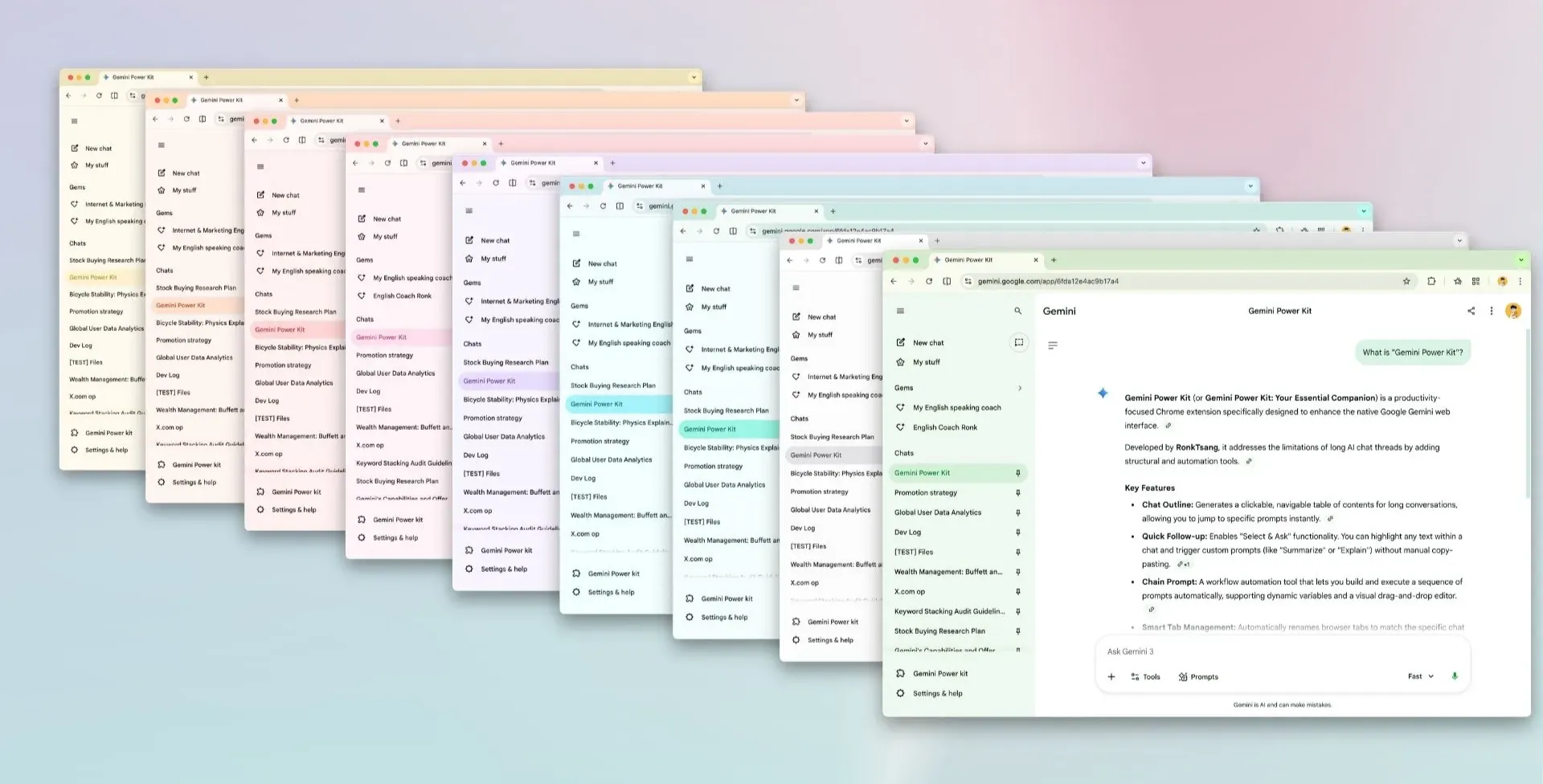
With Color Presets, you can switch among curated themes in one click. Changes are reflected immediately, and your selection is saved automatically.
Wallpaper
Section titled “Wallpaper”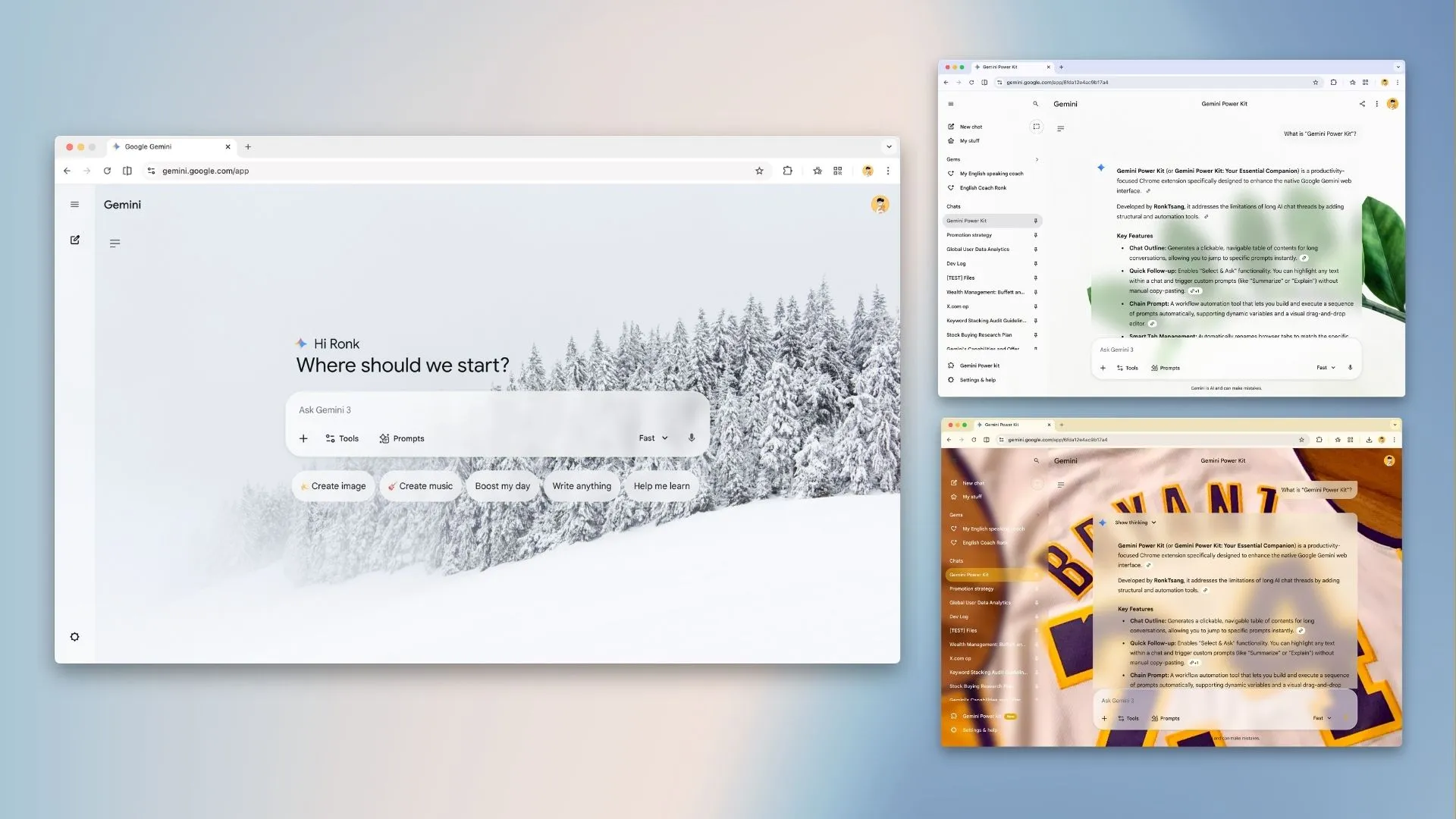
A flat background is functional, but it can make long sessions feel visually fatiguing. Wallpaper helps you create a more personal workspace while readability controls keep the interface usable.
With Wallpaper, you can enable a background image and tune the blur for readability. Supported formats include PNG, JPG, and WebP.
With Message Glass Effect, you can toggle a glassy treatment for message containers to improve depth and style.
v0.5.0 Smart Tabs, Gallery Enhancements
Section titled “v0.5.0 Smart Tabs, Gallery Enhancements”February 4, 2026
This update deepens the integration between your workspace and Gemini, making it easier to manage multiple threads and browse history without losing context.
Smart Tab Titles
Section titled “Smart Tab Titles”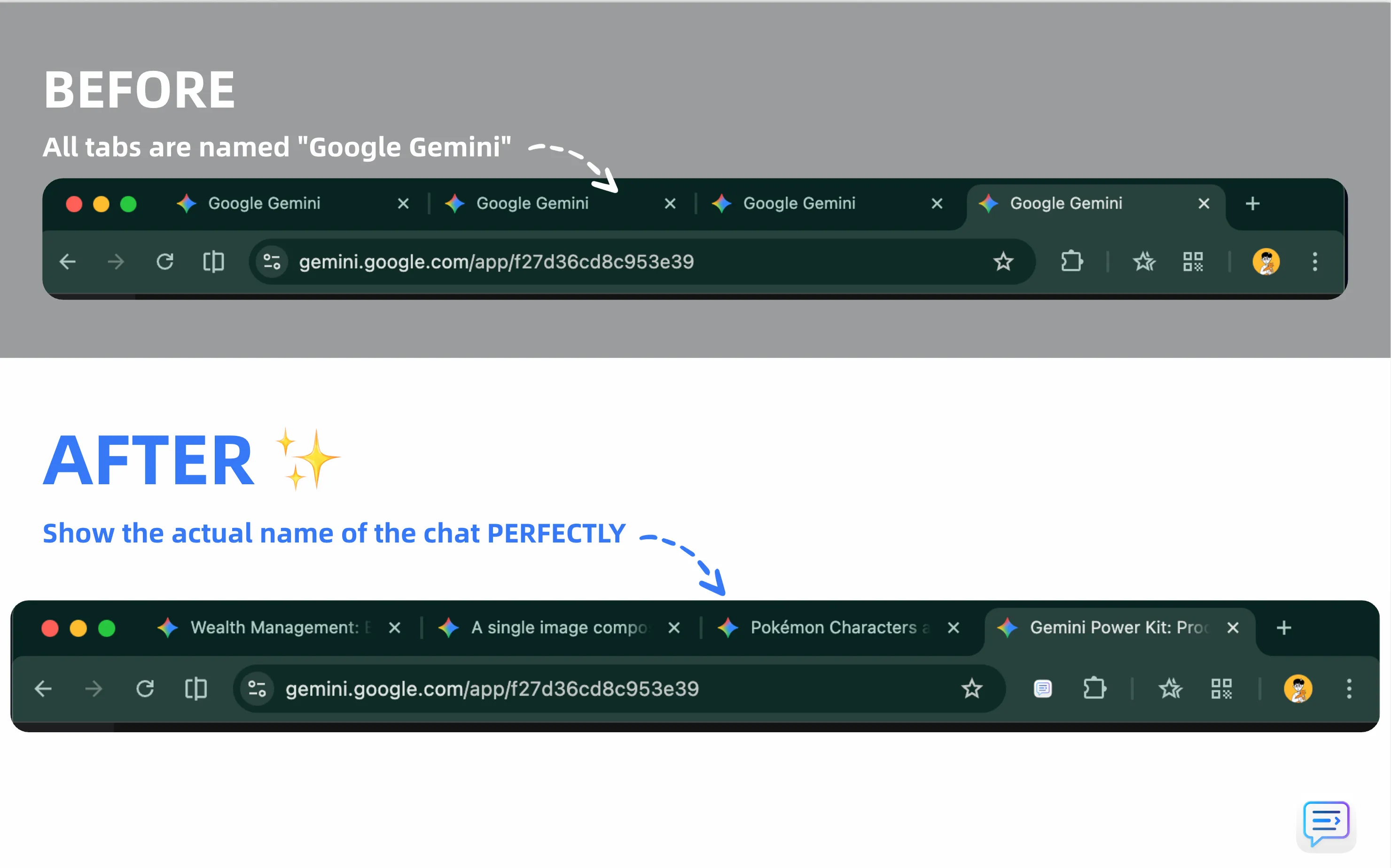
Working with multiple Gemini sessions often leads to a sea of tabs all named “Google Gemini,” making it hard to distinguish research threads or coding tasks without clicking through each one.
With Smart Tab Titles, browser tab titles reflect the actual conversation or page you are on, reducing the time spent searching for the right tab.
Open Media in New Tab
Section titled “Open Media in New Tab”Navigating historic resources on the “My Stuff” page previously felt restrictive. Clicking an item redirected the current page, and returning often meant losing scroll position and context.
The new Open in New Tab entry lets you review resources in new tabs while keeping your library gallery where you left it.
Improvements & Enhancements
Section titled “Improvements & Enhancements”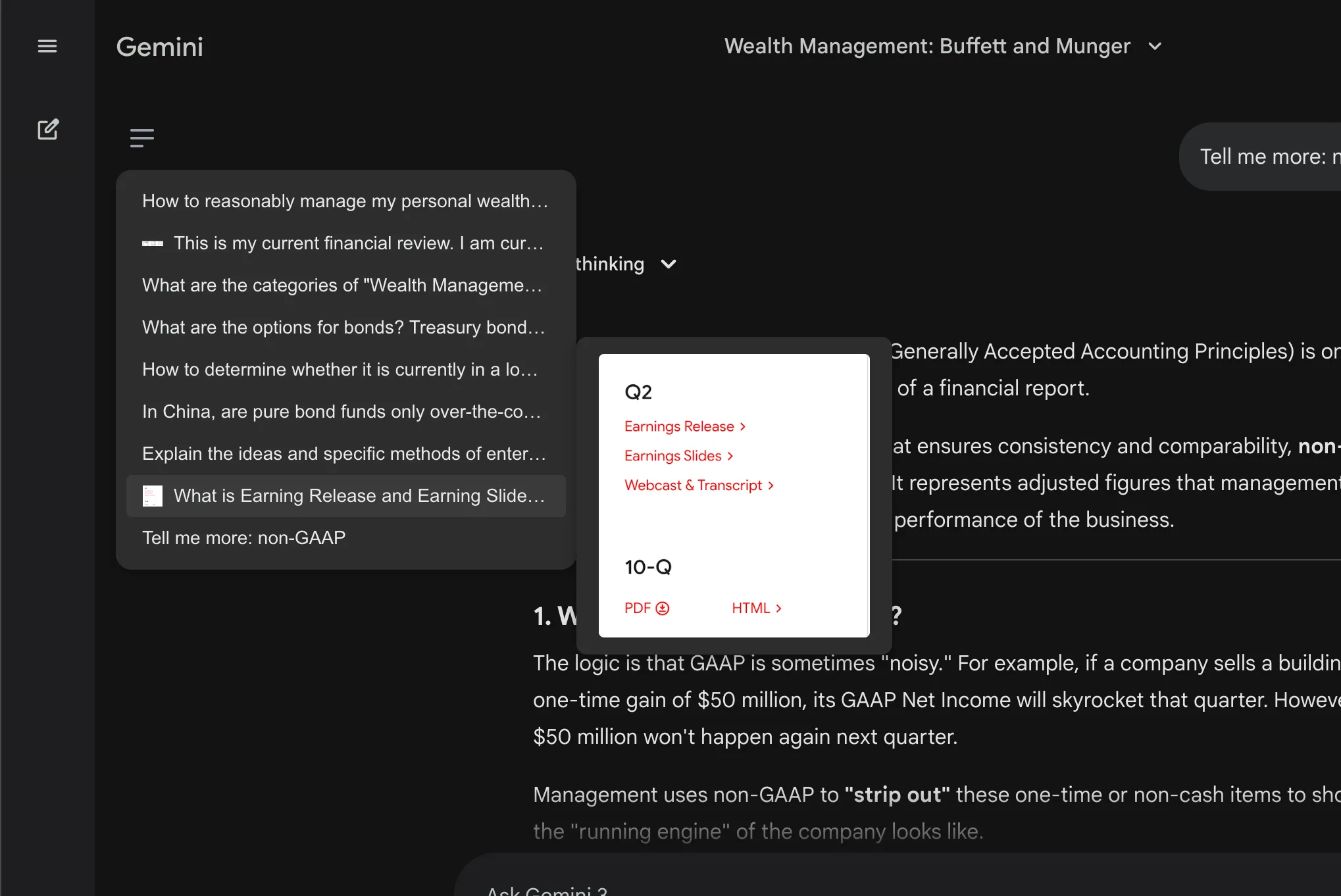
- Preview images directly in Chat Outline.
- Find the right visual item without jumping back and forth between the outline and the chat.