
Quick Start
Welcome to Gemini Power Kit! This guide will help you set up and start using your new productivity toolkit.
1. Installation
Section titled “1. Installation”If you haven’t installed the extension yet, please follow our Installation Guide.
2. Open Gemini Power Kit Settings
Section titled “2. Open Gemini Power Kit Settings”- Open Gemini: Navigate to gemini.google.com.
- Find the entry: At the bottom of Gemini’s sidebar, select the Gemini Power Kit puzzle-piece icon beside Gemini’s Settings icon. When the sidebar is collapsed, it appears immediately before Settings & help.
- Open the panel: Select the icon to open Gemini Power Kit settings. It opens to Enhancements, where you can turn optional features on or off.
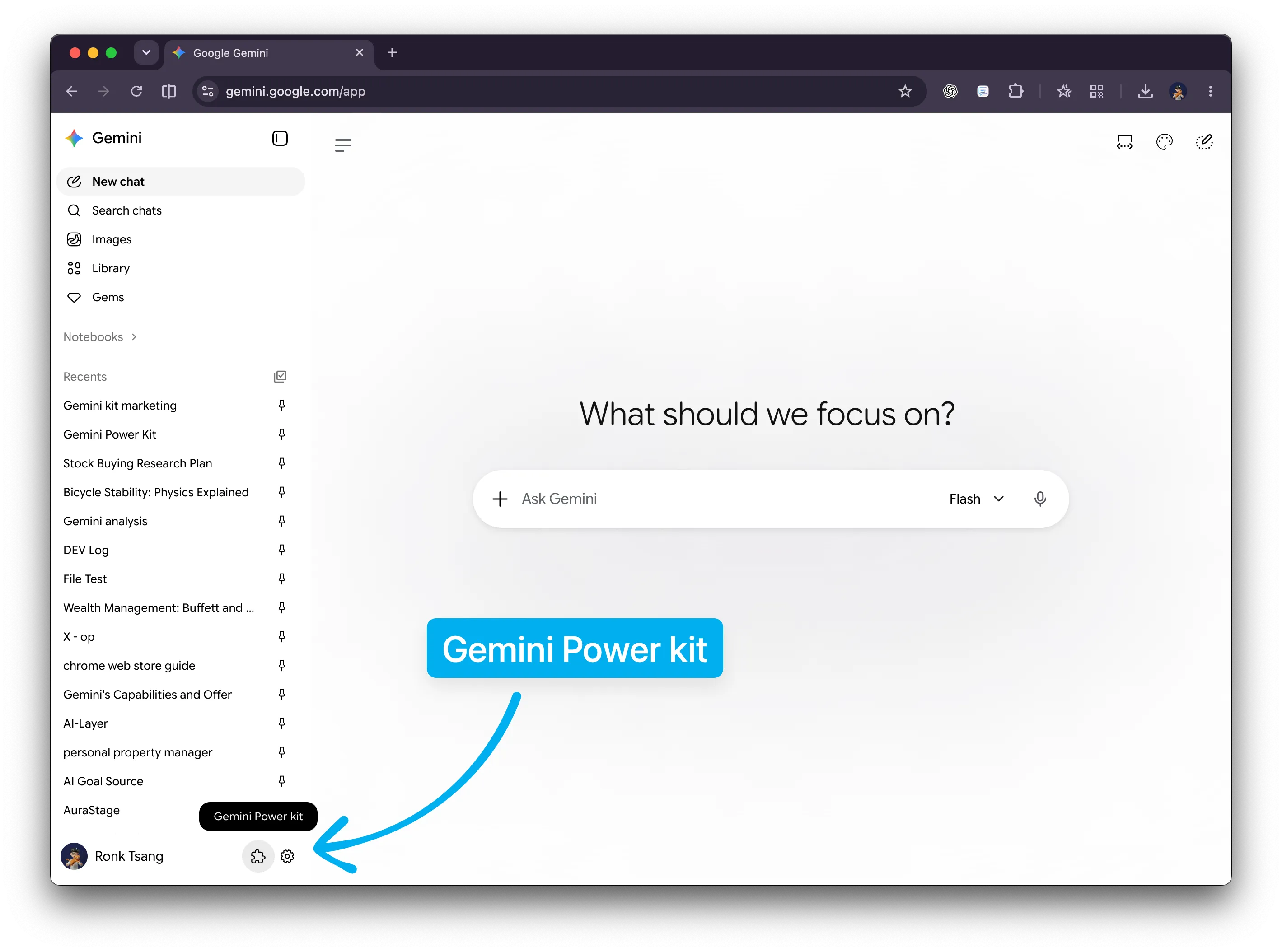
Settings entry — select the Gemini Power Kit puzzle-piece icon in Gemini’s sidebar.
Choose and Enable Features
Section titled “Choose and Enable Features”The settings panel groups Quick Follow-up and Chain Prompt under Prompt. Under Tools, use Enhancements to enable Chat Outline, Bulk Delete, and Gem Avatar, then open Notifications, Shortcut, or Theme for their dedicated controls.
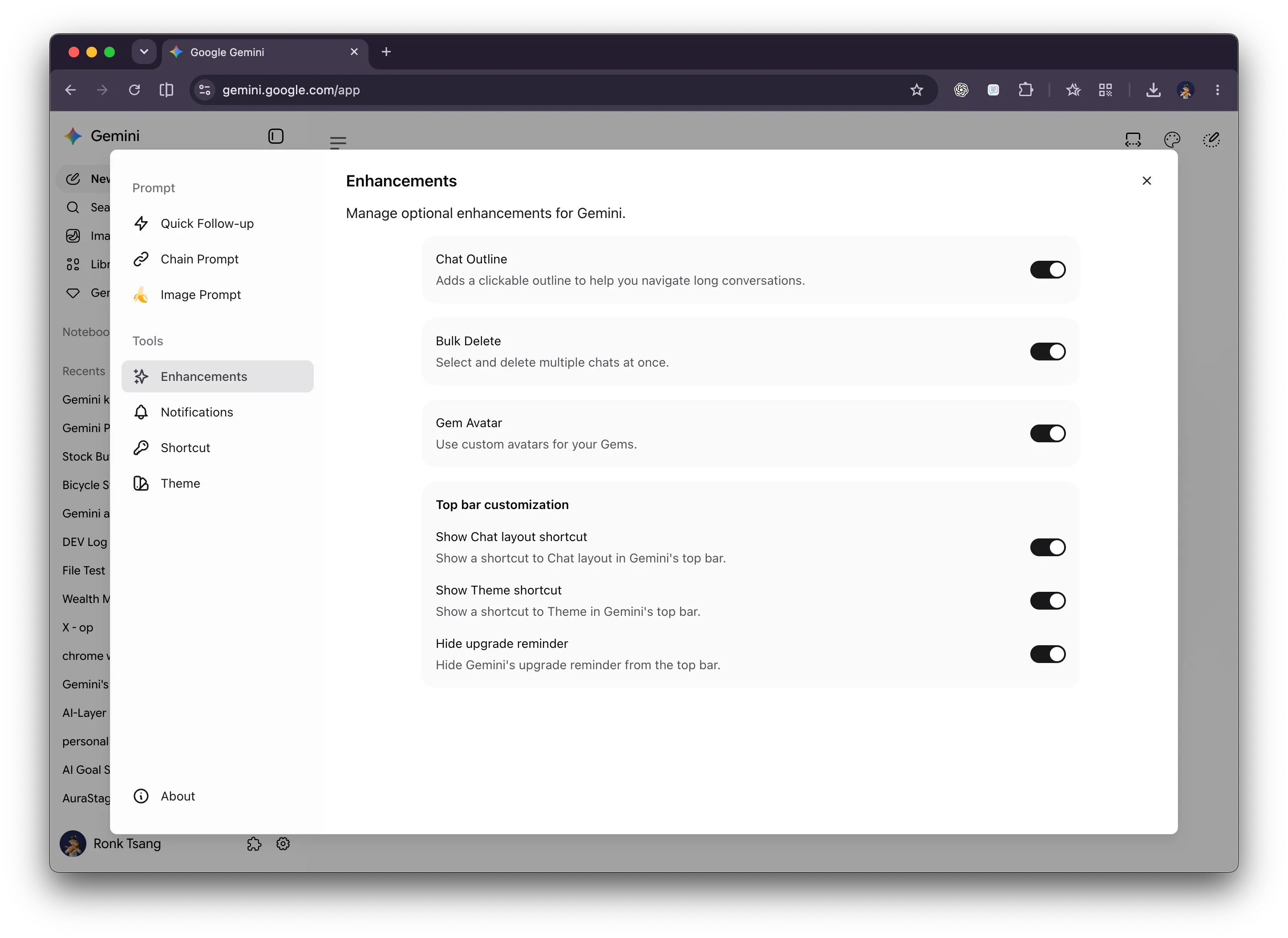
Settings panel — turn optional enhancements on or off, then use the navigation to configure the rest of Gemini Power Kit.
3. Core Features at a Glance
Section titled “3. Core Features at a Glance”🗂️ Chat Outline
Section titled “🗂️ Chat Outline”Keep long chats clear with a clickable map of the current conversation.
- Jump directly to any prompt or response instead of scrolling through the whole chat.
- Pin the outline while you research or compare answers.
⚡ Quick Follow-up
Section titled “⚡ Quick Follow-up”Turn selected text from a Gemini response into your next prompt without copy-pasting.
- Select text in a Gemini response to open the Quick Follow-up capsule.
- Click Ask Gemini to attach the selected text as quote context above the input box, then type and send your follow-up manually.
- Click a saved Custom Prompt to replace Selected Text in the template and send it automatically.
🗑️ Bulk Delete
Section titled “🗑️ Bulk Delete”Clean up temporary Gemini chats in a deliberate batch while protecting the conversations you keep.
- Select 10, 20, 30, or 50 recent chats, then adjust individual selections if needed.
- Turn on Exclude pinned to leave pinned conversations out of a recent-batch selection.
- Review the selection and confirm before any chats are deleted.
🎨 Visual Themes and Chat Layout
Section titled “🎨 Visual Themes and Chat Layout”Make Gemini easier and more comfortable to use.
- Choose color presets, use a custom wallpaper, and adjust the glass effect in Theme.
- Set chat and prompt widths in Default, %, or px; sync them, choose message alignment, or allow full-width messages with Chat layout.
🎭 Gem Avatars
Section titled “🎭 Gem Avatars”Give each Gemini Gem a custom avatar, so it is easier to recognize in lists and chats.
🔔 Reply Notifications
Section titled “🔔 Reply Notifications”Let Gemini work in the background and know when it is ready.
- Receive a desktop notification when a standard reply, image, video, or Deep Research report finishes.
- Open the originating Gemini chat from the notification and optionally use a built-in or custom sound.
🔗 Chain Prompt
Section titled “🔗 Chain Prompt”Automate repetitive, multi-step tasks.
- Go to Chain Prompt in settings.
- Select a pre-defined chain or create your own sequence of prompts.
- Click Run and watch Gemini execute the steps one by one.
4. Pro Tips
Section titled “4. Pro Tips”- Smart Tab Titles: The extension automatically syncs your browser tab title with your chat name. No more guessing which tab is which!
- Open Media in New Tab: From the Library gallery, open an image or file in a new tab and keep your place in Gemini.
- Privacy by Design: Remember, everything runs locally. Your prompts and data are never sent to our servers.
Next Steps:
- Detailed guide on Chat Outline
- Master the Chain Prompt
- Explore Visual Themes