Notify when Gemini finishes replying
Shows a system notification with the chat title and a short response preview after Gemini finishes a standard reply.
Turn this on when you regularly leave Gemini running in a background tab.
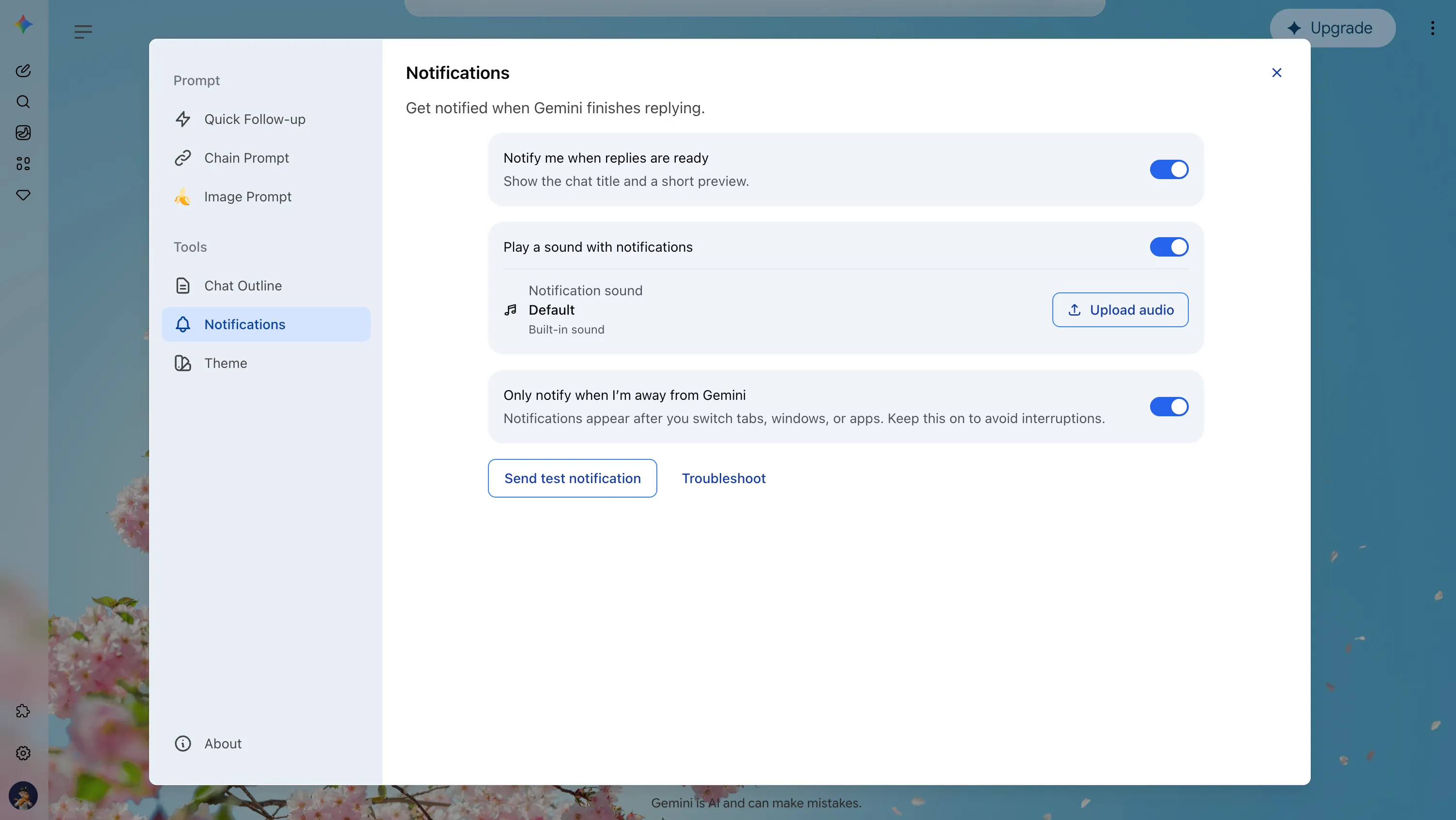
Notifications let you leave a Gemini tab while a response is generating. When a standard Gemini reply finishes in a background tab, Gemini Power Kit sends a system notification with the chat title and a short response preview.
Click the notification to return to the conversation that created it. The notification is then cleared from the notification center.
Long replies should not force you to keep watching one tab. Notifications help when you:
Shows a system notification with the chat title and a short response preview after Gemini finishes a standard reply.
Turn this on when you regularly leave Gemini running in a background tab.
Plays a short completion sound after a notification is created. This separate sound option is available on Chromium browsers.
Use it when visual notifications are easy to miss or when Gemini is behind another app.
Use the built-in completion sound or upload your own audio file for a more recognizable notification cue.
Custom audio is stored locally by the extension and is used only for notification sound playback.
Creates a test alert so you can confirm that browser and system notification settings are working.
Run this immediately after enabling notifications or after changing operating-system settings.
Opens guidance for checking browser permissions and operating-system notification settings.
Use it when the feature is enabled but no alert appears.
Notifications currently detect standard Gemini replies. Deep Research, Canvas, and other Gemini workflows that do not use the standard reply flow may not create a completion notification.
If the test notification does not appear: