
Custom Gemini Gem Avatars
Give Each Gem a Recognizable Character
Section titled “Give Each Gem a Recognizable Character”Gem Avatar lets you give every Gemini Gem its own image. A well-chosen avatar makes a role easier to spot at a glance: a cat for a playful writing partner, a compass for a travel planner, or a clean logo for a work assistant. It is a small visual cue that makes the Gem’s voice and purpose feel more distinct in an ongoing conversation.
Can’t find the Gems entry in Gemini’s sidebar? Open gemini.google.com/gems/view, then create a Gem. Once it is created, Gemini will show the Gems entry in the sidebar.
Your custom avatar appears with the Gem in Gemini’s Gem list, Gem header, and model messages. Gemini Power Kit also shows your current Gemini profile image beside your own messages in Gem chats.
Turn On Gem Avatar First
Section titled “Turn On Gem Avatar First”Gem Avatar is off by default, so it stays out of the way until you choose to use it.
- Open the Gemini Power Kit settings panel in Gemini.
- Select Settings → Enhancements.
- Turn on Gem Avatar.
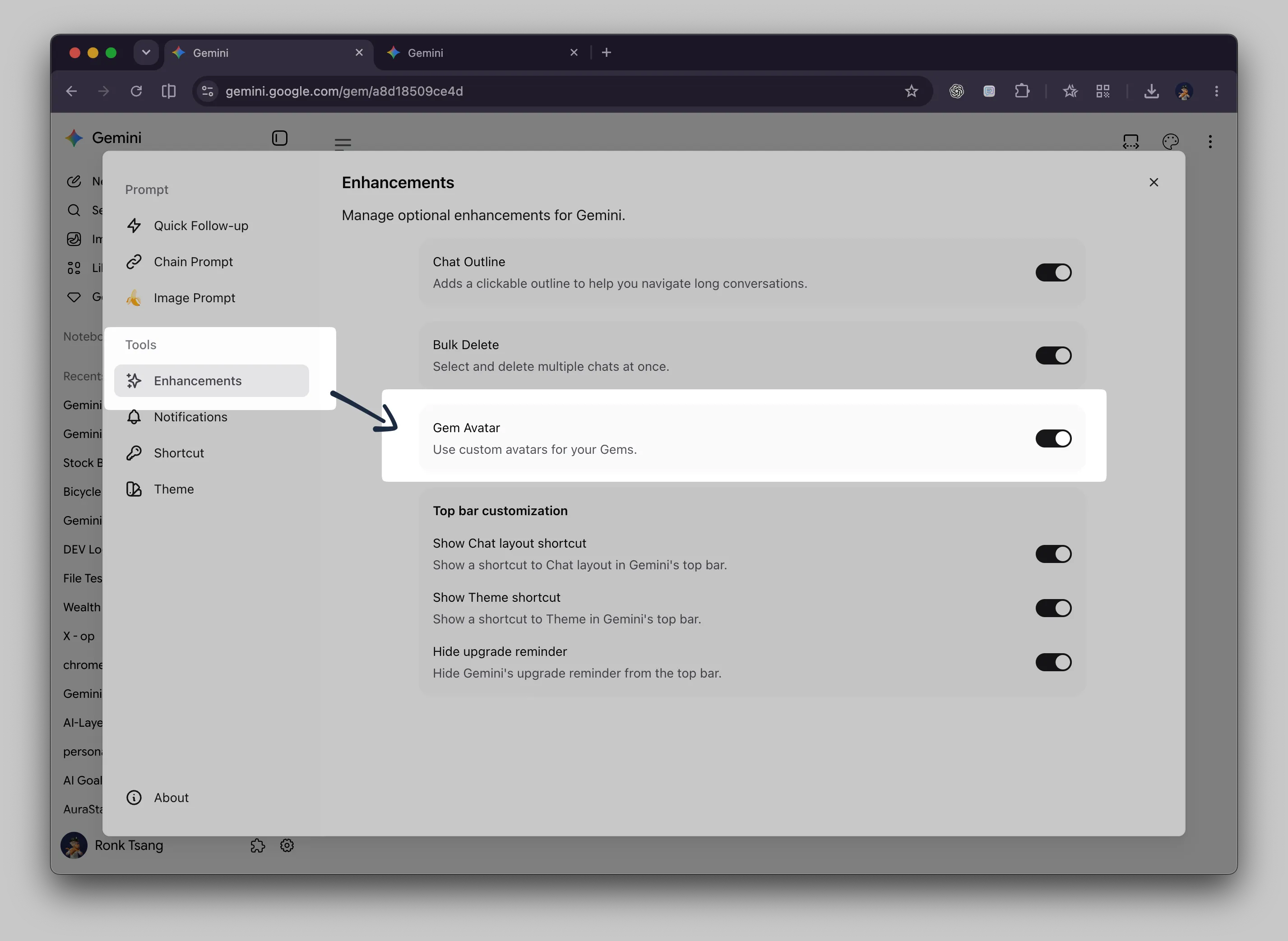
Settings entry — open Enhancements, then turn on Gem Avatar.
Find the Upload Control in Gemini
Section titled “Find the Upload Control in Gemini”The upload control lives in Gemini’s original Gem interface, not in the extension settings. Open a Gem you are creating or editing, then look for its normal circular avatar at the upper left of the Gem editor. Select it to choose an image from your computer.
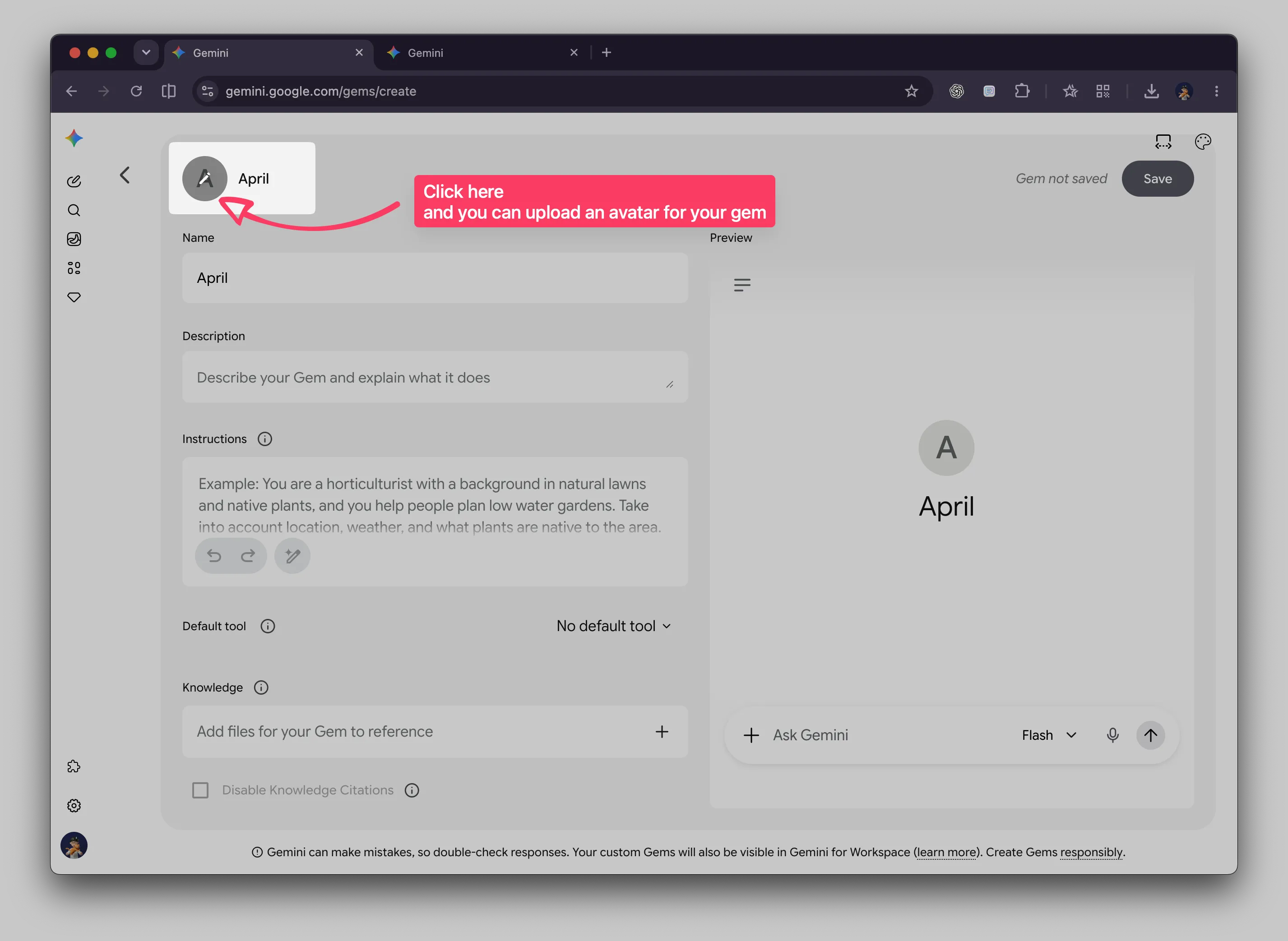
Feature panel entry — select the Gem’s circular avatar in Gemini’s own editor to upload or replace its image.
How to Set an Avatar
Section titled “How to Set an Avatar”- Turn on Gem Avatar in Gemini Power Kit as described above.
- In Gemini, open an existing Gem for editing, or start creating a new Gem.
- Select the circular avatar beside the Gem name and choose a
PNG,JPEG, orWebPimage up to3 MB. - For a new Gem, select Gemini’s Save button. The avatar is kept only after Gemini creates the Gem.
- For an existing Gem, choosing a new image replaces its saved avatar right away.
Gemini Power Kit center-crops the image to a square and stores a 256 × 256 WebP version locally. There is no crop editor, so choose an image whose subject remains clear in a square.
See the Character Carry Into the Chat
Section titled “See the Character Carry Into the Chat”Once set, the image follows the Gem into its conversations. That lets the Gem’s name, instructions, and visual character reinforce one another instead of blending into the default initial-based icon.
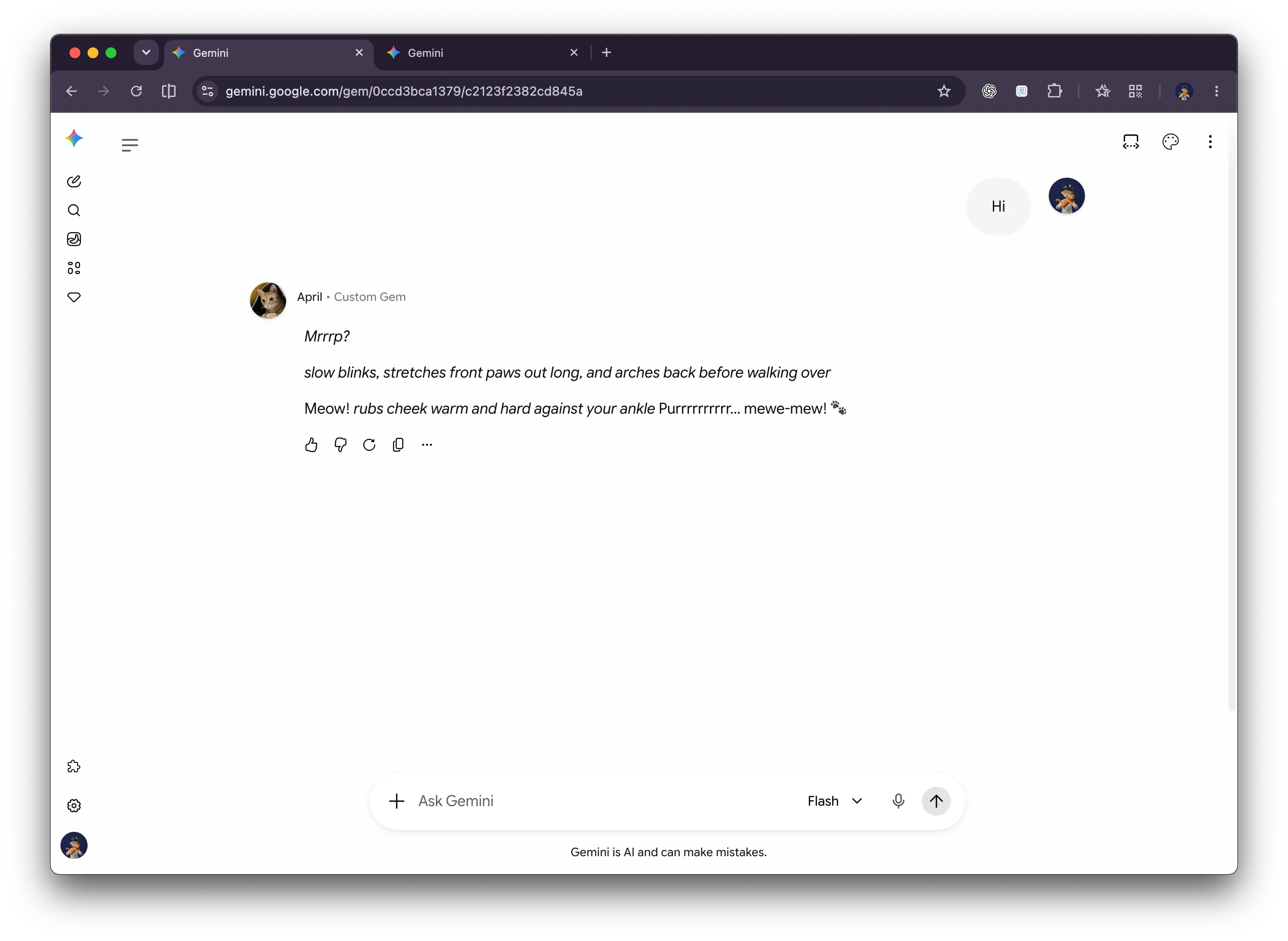
Result — the Gem’s custom cat avatar makes its playful April character immediately recognizable in chat.
Turn It Off, Replace It, or Delete It
Section titled “Turn It Off, Replace It, or Delete It”- To stop showing custom avatars, return to Settings → Enhancements and turn Gem Avatar off. This hides the feature and keeps your saved avatars for later.
- To replace an avatar, open that Gem’s editor and select its avatar again.
- To delete one permanently, open an existing Gem’s editor and select the Delete Gem avatar control. This removes the locally saved image for that Gem and cannot be undone; upload it again if you want to restore it.
Important Notes
Section titled “Important Notes”- Avatars are saved locally in this browser. They are not synced through Gemini Power Kit or attached to your Google Gemini account.
- On a new Gem, leaving the create page before saving discards the selected avatar because Gemini has not assigned that Gem an identity yet.
- Gemini’s interface can change over time. Keep Gemini Power Kit updated for the latest compatibility fixes.